What Image Resolver does and how this guide is laid out.
Image Resolver pulls full-size images — and whole galleries — from web pages, then helps you
organise, protect and view them. It’s built for speed and for the awkward sites that simple downloaders
choke on: pages that hide the real image behind a thumbnail, lazy-load as you scroll, spread across many
pages, or require you to be logged in.
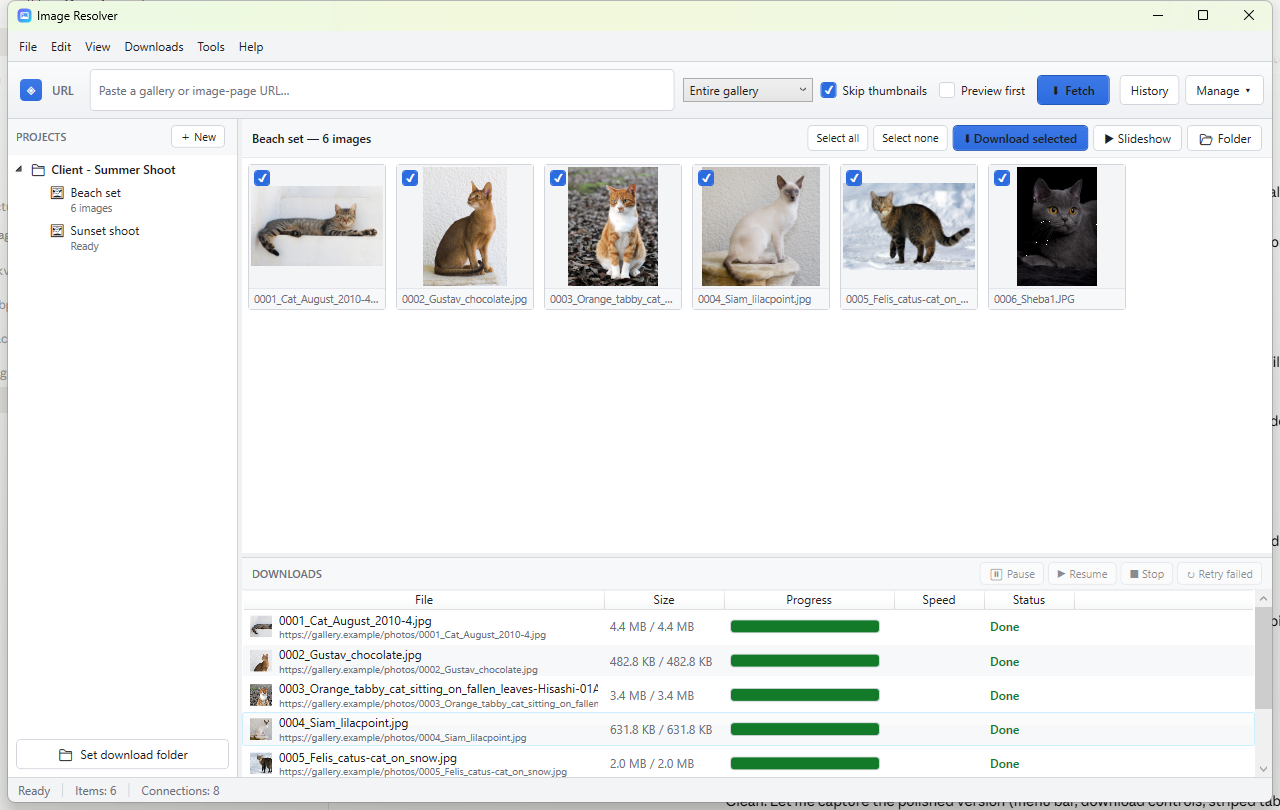
The main window: project tree, thumbnail grid, and a live download manager.
What you can do
Fetch a gallery from a URL, or grab it from your browser’s current tab.
Preview thumbnails and tick only the images you want.
Watch a real download manager: size, progress, speed, status.
Log in to protected sites with the built-in private browser.
…and then
Watermark every image with your logo.
Zip a gallery, or password-protect it with AES-256 encryption.
View full-size with a viewer & full-screen slideshow (animated GIFs too).
Keep a searchable history of every download job.
Tip. If you only read one page, read
Quick start (section 4). You’ll be downloading in under a minute.
2
Installing
One installer for every modern Windows PC.
Double-click ImageResolver-Setup.exe.
If Windows shows a security prompt, choose More info → Run anyway (the app is safe; it is simply
not yet code-signed).
Accept the licence and click Install. Windows will ask for permission — click Yes.
Launch Image Resolver from the Start menu or the desktop shortcut.
Runs everywhere. The single Setup automatically installs the correct build for
your PC — 64-bit, 32-bit, or ARM64 — and, on Windows 10 machines that need it, installs
the Microsoft Edge WebView2 runtime for the built-in browser. Nothing else to download.
No .NET needed. Everything the app requires is included, so it runs on a clean
Windows install out of the box.
Where your data lives
What
Where
Projects & galleries
%AppData%\ImageResolver\projects.json
Download history
%AppData%\ImageResolver\history.db (SQLite)
Settings & site templates
settings.json · templates.json
Your images
The download folder you choose per project
Open this folder any time from Tools → Open app data folder.
3
The window at a glance
Five areas, top to bottom.
Area
What it’s for
Menu bar
File · Edit · View · Downloads · Tools · Help — everything the toolbar does, and more.
Toolbar
The ◈ grab button, the URL box, fetch options, Fetch, Browser, History, Manage.
Project tree (left)
Your projects and the galleries inside them. Right-click for actions.
Thumbnail grid (centre)
Preview and pick images; the finished gallery lives here too.
Download manager (bottom)
Live rows: file, size, progress, speed, status — with pause / resume / stop / retry.
Status bar
Current activity, item count, connection count, and download speed.
The toolbar buttons
Button
Does
◈ (top-left)
Grabs the URL from your browser’s current tab and drops it in the box.
URL box
Paste a gallery or image-page URL. The ✕ clears it.
Entire gallery / Just this page
Follow pagination and per-image pages, or grab only the one page.
Skip thumbnails
Ignore icons, logos, avatars, ads and tiny images (recommended).
Preview first
Show thumbnails and let you tick which to download. Off = download everything now.
Fetch
Start finding and downloading images.
Browser
Open the built-in browser to log in and grab protected pages.
4
Quick start
Three ways to get a gallery in.
A · Paste a URL
Copy a gallery page’s address from your browser.
Paste it into the URL box and press Fetch (or Enter).
The first time, choose a download folder when asked. That’s it — images start arriving.
B · Grab from your browser
Open the gallery in Chrome, Edge, Firefox, Brave, Opera or Vivaldi.
Switch to Image Resolver and click the ◈ button (top-left).
The current tab’s URL appears in the box — press Fetch.
C · Use the built-in browser
Best for sites that need a login or that block ordinary downloaders. See section 7.
Preview first? Tick Preview first before Fetch to hand-pick images
instead of grabbing the whole set.
5
Preview & pick
Only download what you want.
With Preview first ticked, Fetch fills the grid with thumbnails and a tick-box on each.
Select all / Select none — toggle everything at once.
Click a thumbnail’s box to include or exclude it.
Download selected — download only the ticked images.
🗑 Clear — empty the grid and start again.
Switch target mid-preview. Picked the wrong project on the left? Just click the
right one while previewing — your selection is kept and the download goes there.
6
The download manager
Full visibility and control.
Every image is a row at the bottom of the window:
Column
Shows
File
Thumbnail, filename and source URL
Size
Downloaded / total
Progress
A live progress bar
Speed
Current speed for that file
Status
Queued · Downloading · Done · Failed
Controls
Button
Action
⏸ Pause / ▶ Resume
Pause and resume the whole queue, mid-file.
■ Stop
Cancel the current download.
↻ Retry failed
Re-download every failed item.
Right-click any row for: Retry this item, Open file location, Copy source URL,
Remove from list.
Faster downloads. In Tools → Settings you can raise the number of
simultaneous connections (up to 30). Failed files are retried automatically.
7
The built-in browser
Log in to protected sites, then grab.
Some sites require a login, or block ordinary downloaders. The built-in browser is a real, private
browser inside the app — log in exactly as you normally would, and Image Resolver grabs the images
using your logged-in session.
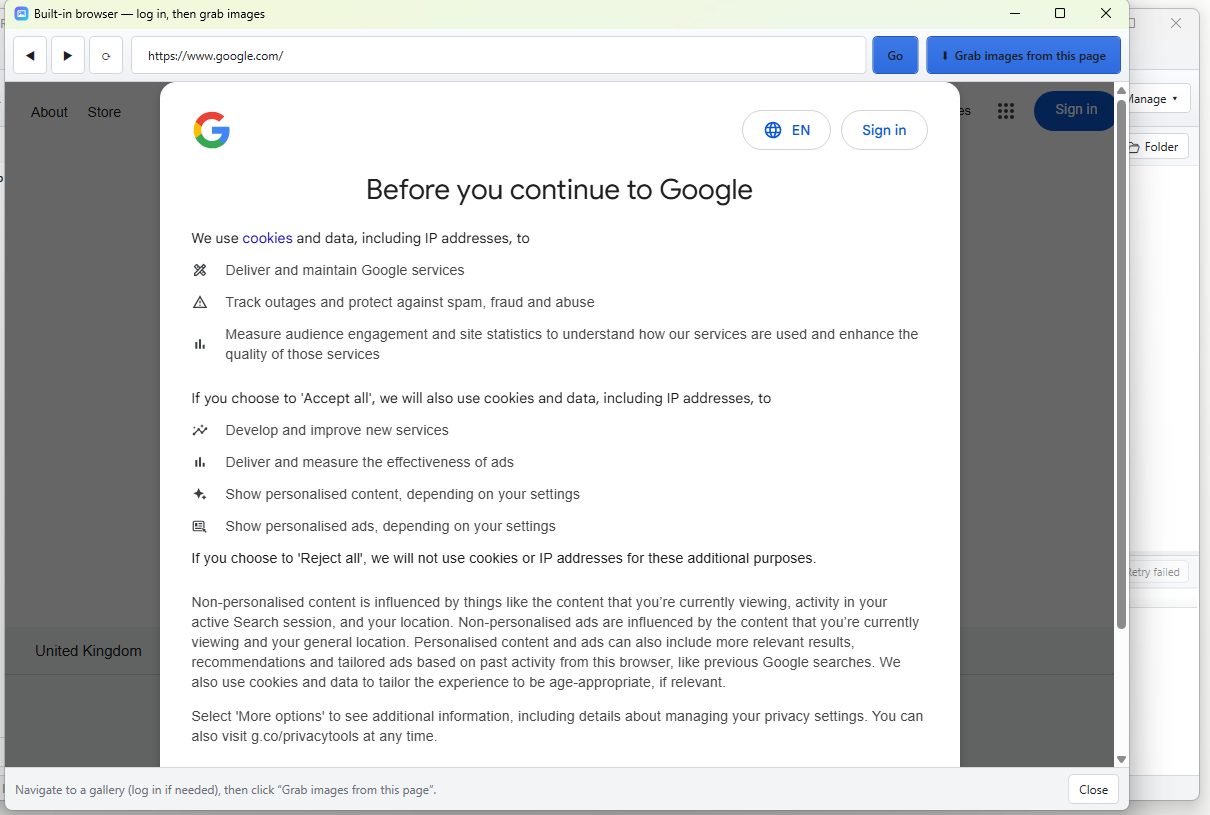
Navigate, log in, then click “Grab images from this page”.
Click Browser on the toolbar.
Type the site’s address and log in if it asks.
Open the gallery page, then click “Grab images from this page”.
The browser scrolls the page to load every image, then hands them to the download queue.
Private by design. The built-in browser keeps no history and no cookies
after you close it — it uses a fresh private profile each time and wipes it on exit. Your login is used only
for that session.
If Fetch says “couldn’t reach the site”, that site is blocking direct
downloads. Use the Browser button instead — it loads the page like a real browser and gets past that.
8
Projects & galleries
Keep everything organised on the left.
A project has a download folder and holds any number of galleries. Each gallery downloads into
its own sub-folder, so nothing gets mixed up.
+ New — create a project and choose its download folder.
Right-click a project: set download folder, rename, or remove.
Right-click a gallery: download/refresh, open folder, watermark, zip, encrypt, rename, remove.
Removing a gallery, your choice. When you remove a gallery you’re asked whether
to keep the files on disk or delete them too.
Housekeeping (Manage / Tools menu)
Action
Effect
Job history
A searchable record of every download; open its folder, copy the URL, or clear it.
Delete all downloaded images (project)
Frees disk space; galleries stay so you can re-download.
Clear job history
Wipes the history database completely.
9
Watermark · Zip · Encrypt
Protect and package a gallery. Right-click the gallery to start.
Watermark all images
Stamp your logo onto every image at once. Choose the logo, its position (corner, centre or tiled), size and
opacity. Watermarked copies go into a watermarked sub-folder — your originals are untouched.
Zip gallery
Bundle the whole gallery into a single .zip to send or archive.
Password-protect / encrypt
Create a password-protected AES-256 encrypted zip. Anyone opening it must enter the password.
Keep the password safe. Encryption is real — a lost password cannot be recovered.
10
Viewer & slideshow
Look through your images full-size.
Double-click a thumbnail to open the viewer, or press ▶ Slideshow for a full-screen show.
Animated GIFs play in both.
Viewer shortcuts
Key
Action
← / →
Previous / next image
+ / −
Zoom in / out (or Ctrl+scroll)
F
Fit to window
Space
Start slideshow
Esc
Close
In the slideshow, use the on-screen controls to play/pause, step, and change speed.
Right-click any thumbnail for Open image, Open file location, or Copy file path.
11
Power features
Found under the Downloads and Tools menus.
Search images by keyword
Downloads → Search images by keyword: type a term and Image Resolver finds matching full-size images
from the web and drops them into the queue (preview-and-pick works here too).
Add from URL / fusker list
Downloads → Add from URL / fusker list: paste image URLs one per line. Ranges expand automatically —
photo[001-050].jpg becomes photo001.jpg … photo050.jpg.
Video & audio
Turn on “Also grab video / audio” in Settings to download .mp4, .webm,
.mp3 and more, not just images.
Site templates
Tools → Site templates: per-site rules (in an editable file) that apply automatically when you fetch a
matching site — e.g. how many pages to follow, or whether to skip thumbnails.
12
Settings
Tools → Settings. Changes are saved instantly.
Setting
What it does
Simultaneous connections
How many images download at once (1–30). Higher is faster on good connections.
Auto-retry attempts
How many times a failed/aborted file is re-tried automatically.
Minimum file size (KB)
Discard files smaller than this — a simple way to skip junk.
Minimum dimensions (px)
Skip images below a width × height. 0 turns the filter off.
Also grab video / audio
Include media files, not just images.
13
Troubleshooting & FAQ
Quick answers.
Fetch says “couldn’t reach the site”.
That site blocks direct downloaders. Click Browser, open the gallery there, and use
Grab images from this page — it loads the site like a real browser and gets the images.
It found fewer images than the page shows / missed some.
The site lazy-loads as you scroll. Use the Browser and Grab — it scrolls the whole page first so every
image loads. For a single page, make sure Entire gallery is selected to follow all pages.
The built-in browser won’t open.
It needs the Microsoft Edge WebView2 runtime, which the installer adds automatically. If it was skipped,
re-run the Setup, or install “Microsoft Edge WebView2 Runtime” from Microsoft.
Downloads are slow.
Raise Simultaneous connections in Settings (try 10–16).
Where did my images go?
Right-click the gallery → Open folder, or use 📂 Folder above the grid.
Nothing is saved by the browser afterwards?
Correct — the built-in browser is private and wipes all cookies and history when it closes.
Image Resolver. This guide covers version 2.9.
Features and layout may evolve between releases.